
Skip to content

Voltage, current, temperature & fan

Overview
Details

Developer mode

This feature appears in Developer mode.

  1. Open Menu → Device Info.
  2. Tap the firmware version five times, with no more than 2.2 seconds between taps.
  3. Return to the menu and open the indicated feature.

Use the menu’s Developer Mode toggle to return to the normal interface. Developer mode changes which controls this browser displays; entering it does not change saved controller settings.

Use the board’s rated operating ranges and hardware limits. Retain fault evidence before changing a threshold.

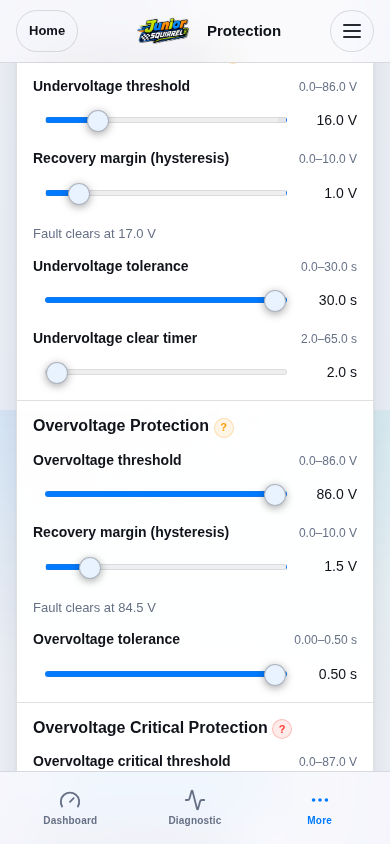
With Developer mode enabled, open Menu → Protection → Voltage. Confirm the Battery Profile, then read the undervoltage trip, recovery margin and dwell/clear timers.

Recovered voltage alone may not clear the restriction.
Step 1 / 6
Open Voltage and review UndervoltageSimulation
Voltage Protection saved thresholds / recovery controls; UI reference, no additional physical fault validation.
View 1 / 1

Enlarged screen

Voltage Protection saved thresholds / recovery controls; UI reference, no additional physical fault validation.

Capture details

Voltage Protection saved thresholds / recovery controls; UI reference, no additional physical fault validation.

Evidence
Development Hub simulation · DRV1100BDV5
UI state
mode-normal has-floating-action-rail has-sticky-primary-action
Viewport
390 × 844 · actual viewport
Page position
0, 434 px
Scenario
hub/default-configuration.yaml
Virtual time
701728 µs
Route
/settings-protection.html

Choose a topic